Category: WordPress

  • W3 Total Cache causing Mobile Friendly Test fails, blocks Google from CSS/JS

    W3 Total Cache causing Mobile Friendly Test fails, blocks Google from CSS/JS

    Multiple users are reporting SEO issues with the latest update of the popular WordPress caching plugin W3 Total Cache (W3TC) released late last week.

    We have tested and confirmed both the presence of the code blocking Google (and other search engines), as well as the circumstances in which Google will be blocked.

    Impact

    Users on SEO and WordPress forums are reporting that the new code is causing issues in Google’s Mobile-Friendly Test Tool, resulting in submitted URLs failing the test.

    CSS and JS files are used by Google to render the content found on URLs. Blocking Google from these important site resources could potentially have a negative SEO impact.

    We can see here for example that without access to these resources Google are unable to confirm if a page is mobile-friendly or not.

    The impact could be more significant than this however, potentially leading to both crawling and indexing issues for sites affected – which could in turn affect rankings.

    What is happening?

    The latest W3TC update adds a new instruction to a site Robots.txt file blocking all user agents, including Google, from the cache directory – specifically when the CSS/JS minification option is enabled in the plugin settings.

    Minification option enabled in the W3TC settings

    When minification is enabled, site resources are served from the /wp-content/cache/ directory – which has been blocked from crawling by the latest update.

    All In One SEO Plugin Conflict

    There are also reports that the newly created robots.txt file is conflicting with the virtual robots.txt file created by the All In One SEO (AIOSEO) plugin if users also have that installed on their site.

    The physical file created by W3TC is overwriting/taking precedence the virtual file originally put in place by All In One SEO.

    Robots.txt

    You can see the new instruction set below (enclosed between two comments):

    # BEGIN W3TC ROBOTS
    User-agent: *
    Disallow: /wp-content/cache/
    # END W3TC ROBOTS

    We confirmed the presence of this code in the latest plugin update via the W3TC GitHub repository and live on a test site.

    Although the robots.txt instruction appeared straight away, files were not moved into the /cache/ directory until we turned on the minification option.

    Solution

    Disabling minification in the plugin options (and flushing all caches) should move the site JS/CSS files back out of the cache directory.

    If you don’t want to turn off minification, an alternative temporary fix would be to simply to remove or comment out the lines in your site’s Robot.txt file – though the issue could recur potentially depending on how W3TC handle this.

    Hopefully once W3TC realise their error – in response to what I expect will be a lot of negative feedback from the SEO/webmaster community – they will remove this from future versions of the plugin.

    For users that are also having a conflict with the All In One SEO plugin, the best fix would probably be to downgrade to the previous version of W3 Total Cache and turn off automatic updates until the issue is resolved.

    Update/Patch

    W3TC released an updated version of the plugin (2.1.8) to fix the issue.

    If you update your plugin (or have automatic plugin updates enabled) the problem should be resolved.

    To check simply visit your robots.txt file and confirm the disallow rule is no longer in place.

  • Display your Trees and Carbon Impact with the Ecologi API in WordPress

    Display your Trees and Carbon Impact with the Ecologi API in WordPress

    Ecologi is a service organisations and individuals can use to plant trees and offset carbon usage.

    We are huge fans of Ecologi at Search Candy.

    Ecologi is clearly a product that has been built by geeks, for geeks, so naturally built into the service are two APIs that can let you either display your impact on your website, or to add more impact – automatically purchasing additional trees or carbon which will be added to your next bill.

    Read on for a guide to using the Ecologi reporting API to display your impact on a WordPress website.

    Ecologi Toolkit & Button

    First though, it may be useful to know that Ecologi also have a ‘toolkit’ page – where they host a selection of media and assets users can add to their site or marketing materials.

    If you are not technical at all, or don’t have the time to set up the API on your site, one of the features of the toolkit is a set of static and dynamic buttons. Using the dynamic buttons will show your live impact.

    You can choose between black text (for light backgrounds) or white text creating a button.

    Colour selector preview

    When linking to Ecologi don’t forget to use your ‘Invite friends‘ referral link that you can find on your profile page.

    Here is ours: https://ecologi.com/searchcandy?r=5d70ea8ba3aba90010b8babf

    Each person that signs up using your link will get you both 30 trees each.

    Ecologi API

    Once logged into your account, go to the ‘API’ tab in Ecologi via account settings area.

    Reporting API

    We are going to use Ecologi’s Reporting API.

    Ecologi Reporting API

    The reporting API is completely safe to use so doesn’t require authentication, access keys, or anything fancy like that, because all you are doing essentially is asking Ecologi to confirm the total tree/carbon numbers that they are already on your profile page.

    Endpoints

    There are 3 available API feed endpoints, depending on what you want to display:

    • 🌲 Trees only: https://public.ecologi.com/users/your-username/trees
    • 💪 Carbon offset only: https://public.ecologi.com/users/your-username/carbon-offset
    • 🌲+💪 Both trees & carbon: https://public.ecologi.com/users/your-username/impact

    Replace your-username with your Ecologi username.

    You will need at least one of these API endpoints to set things up later on.

    Each feed is provided in a JSON format. If you are web developer you might decide to work with the JSON using another method.

    For everyone else, read on for a plug-and-play guide to setting up the Ecologi API in WordPress using a plugin to import the feed and Gutenburg.

    If you aren’t using Gutenburg you can use a short-code instead to display the feed contents.

    Getting Started / Step by Step Guide

    We are going to take the JSON feed, pull in the data, and display it on our site for visitors to see.

    At this point you may want to have a think about what you want to display and where you want to display it.

    If you are working on a project that is totally focused around for example trees, then the carbon numbers may not be useful for you – so you only need to use the trees JSON feed, or vice versa.

    We decided to show both trees and carbon offset in different columns, and we wanted to add them to a single page where we talk about our climate work. Alternatively you might want to add them to your about page, footer, or even your homepage.

    If you have access to a WordPress web developer there are a few ways in WordPress that you could choose to work with the JSON feed, but we are going to keep this guide simple and use a plugin to handle the heavy lifting for us.

    JSON Content Importer WordPress Plugin

    Using the JSON Content Importer plugin it is possible to easily import and parse the JSON feed, then display the results right on your website, via a Gutenberg block, or a short-code.

    You can take a look at our page to get ideas/as a demo for how it can look.

    Step 1: Install and activate the JSON Content Importer plugin in WordPress.

    Step 2: Load up the page where you want to display the information and add the JSON block in Gutenburg which should now be available. If you search ‘json’ it should find the ‘JSON Content Importer FREE’ block which you can add to the page. See below:

    JSON block in Gutenburg
    Adding the JSON Content Importer block in Gutenburg

    Step 3: On the right hand side you should see the block settings. Paste the URL of the appropriate API endpoint (eg ‘trees only’) into the ‘API-URL’ box. You can see a screenshot of this, and the next step – under Step 4.

    Step 4: In the template box, you will need to use a template that matches up to and extracts the ‘total’ value. I use something along the lines of:

    <p>{total}</p>

    Your settings should look something like this:

    Block settings

    Step 5: If you want to add another metric, repeat steps 2-4 with a new block.

    I found setting up a two column layout in Gutenburg worked well, so you can have one column for trees and one for carbon.

    Once you are done, save/publish the page and you are good to go!

    Shortcode / Working with other page-builders

    If you are not using Gutenburg the JSON Content Importer plugin has a shortcode functionality that you should be able to use with any page builder or even just direct in a post/page.

    Here is an example short-code I have tested and can confirm works correctly on my site:

    [jsoncontentimporter url=https://public.ecologi.com/users/your-username/trees]{total}[/jsoncontentimporter]

    Last bits, Caching

    You might need to refresh the page a few times before the API information pulls in.

    Also be aware that if you have a caching plugin you may have to clear the cache each time.

    The JSON plugin actually has its own built in caching system, but we found this setting to be problematic so would recommend to disable it.

    I hope you have found this guide useful! If you have any questions or need help setting it up feel free to tweet me @ColinMcDermott.

  • Does Adding rel=”noopener noreferrer” to a Link affect SEO?

    Does Adding rel=”noopener noreferrer” to a Link affect SEO?

    You may have recently noticed that WordPress has started adding rel=”noopener noreferrer” to links by default.

    (more…)
  • Creating a Static/HTML Sitemap in WordPress Without a Plugin

    Creating a Static/HTML Sitemap in WordPress Without a Plugin

    We have put together a quick guide to creating a static/HTML sitemap in WordPress without having to install a plugin.

    (more…)
  • Can’t Turn Off WordPress.com Stats in Jetpack? Here’s The Solution

    Can’t Turn Off WordPress.com Stats in Jetpack? Here’s The Solution

    In April the team at Jetpack redesigned the settings user interface, and in our opinion it has made turning off some features more than a little confusing.

    (more…)

  • WordPress Inbound Lead Notifications & Logging – How To Make Sure You Never Miss A Contact Form Message

    WordPress Inbound Lead Notifications & Logging – How To Make Sure You Never Miss A Contact Form Message

    For many businesses, acting on an inbound lead quickly can be the difference between making a new customer, and getting through to a voicemail.

    (more…)

  • How to Create A WooCommerce Product Sitemap – Static/HTML & XML

    How to Create A WooCommerce Product Sitemap – Static/HTML & XML

    We thought we would put together a quick guide on how to create static and XML product sitemaps for WooCommerce.

    (more…)

  • How To Disable Emojis in WordPress

    How To Disable Emojis in WordPress

    As of WordPress 4.2, by default WordPress includes support for Emojis. Great if that is your cup of tea, but if not, you might want to remove the additional resources Emoji support adds to your webpages.

    (more…)
  • WordPress / ‘Error: The password field is empty’ – How To Fix

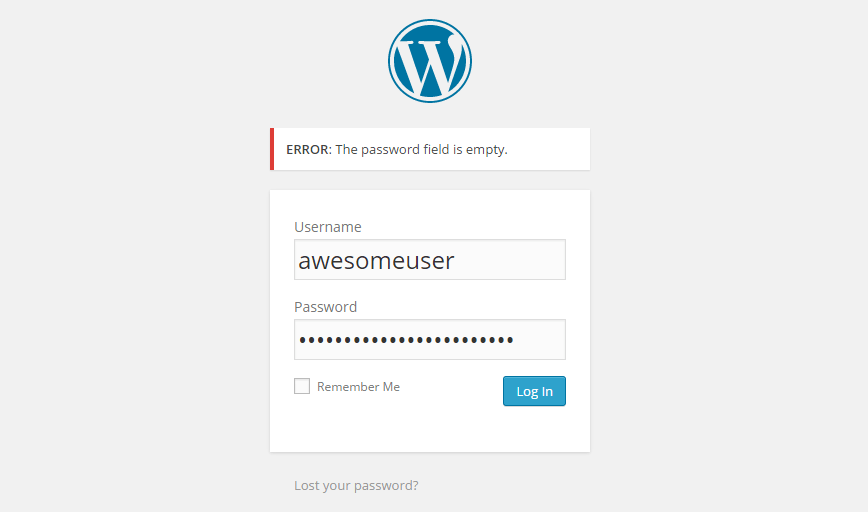
    WordPress / ‘Error: The password field is empty’ – How To Fix

    If you have used WordPress in Chrome, more than likely you have come across the super annoying ‘Error: The password field is empty‘ problem at least once – if not multiple times per day!

    (more…)

  • How To Protect WordPress from XML-RPC Pingback Abuse

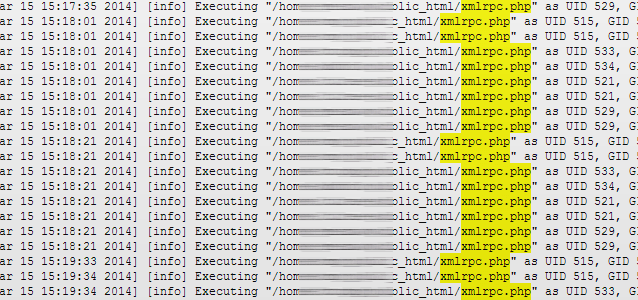
    How To Protect WordPress from XML-RPC Pingback Abuse

    Find out how to protect your WordPress blog from XML-RPC pingback abuse.

    (more…)
  • Best WordPress Database Optimization Plugins

    Best WordPress Database Optimization Plugins

    A list of the best WordPress database optimization plugins to help speed up your WordPress site.

    (more…)