Good ecommerce SEO is not cheap. Cheap ecommerce SEO is not good. You get the idea.
Similarly, the level of work needed on ecommerce sites can vary considerably:
Ecommerce sites can range in size from smaller sites with a handful of key products, to larger enterprise sites with potentially even millions of products, categories and filters.
How much do Ecommerce SEO services cost in the UK?
At Search Candy we work with medium to larger-sized companies, so our minimum pricing for ecommerce SEO is £2,000 per month. This means that we only work with clients that pay at least £2k per month or higher.
Ecommerce SEO services in the UK can cost anywhere from £250 to £20,000+ per month depending on the site/campaign size.
Below we will take a detailed look at the pricing levels you can expect to pay for ecommerce SEO services in the UK in 2022 and beyond.
Starter Ecommerce SEO
SEO services for smaller ecommerce sites and startups with a low budget.
For smaller ecommerce sites and new sites with a low budget you may be able to find ecommerce SEO services ranging from £250 to £1500+ per month.
We wouldn’t recommend paying any less than £500 per month if you want to achieve any significant results.
This type of budget may be suitable for smaller sites on hosted platforms such as Shopify or Wix.
At this level you can expect to get some technical/onsite work but there will not be much room for link building or other supplementary work every month.
To grow more quickly you may to look at expanding to higher level package.
Mid-level Ecommerce SEO
Ecommerce SEO services for medium sized ecommerce operations.
For mid-sized ecommerce sites budgets can range anywhere from £1500 to £5k per month for an ecommerce SEO retainer at an agency.
This level of budget would be suitable for stores using out-of-the-box self-hosted ecommerce platforms like Magento, BigCommerce and WooCommerce.
Typically mid-level ecommerce sites will primarily be targeting sales nationally or to a smaller number of international locations.
Large & Enterprise Ecommerce SEO
Ecommerce SEO services for large and enterprise level ecommerce operations.
Ecommerce SEO for larger websites can vary considerably depending on the size and scope of the campaign.
Larger-sized ecommerce SEO campaigns will generally come in between £5k and £20k per month.
International SEO is often a major consideration for bigger ecommerce projects, with customers and platforms in different countries and languages.
Larger ecommerce sites are often built on one or more custom platform/CMS, connected to other often complex back-end systems and infrastructure.
More modern ecommerce platforms may make heavy use of JavaScript frameworks and headless architectures.
Need help with ecommerce SEO? At Search Candy we specialise in organic search marketing for ecommerce. Get in touch for a free quote or visit our ecommerce SEO page to find out more.
SEO is one of the most important channels in ecommerce, so it is vitally important you make your ecommerce site friendly to Google and other search engines if you want to reap some of that sweet organic traffic.
Essential reading: just this month Google published additional guidance for ecommerce site owners relating to navigation which can be found here.
Why is navigation important in ecommerce?
The navigation menus and process of an ecommerce store can be super important: allowing both users and search engines to understand the structure/hierarchy of your store, enabling them to find their way around the different categories, sections and product offerings.
For this reason it is important to spend a solid amount of time planning out navigation systems across the site, and of course a strong focus the primary navigation menu to ensure it effectively links to all the key areas of the store. Also to conduct testing to make sure that your navigation systems are functionable, accessible, and easy to use for both customers and search engine bots.
A poorly designed, slow, or confusing navigation system can lead to both lower sales as well as worse indexing & performance in search engines.
Search Engine Friendly Ecommerce Navigation
From an SEO perspective there are a few things you want to avoid if you want bots to be able to easily use your navigation.
Most of the below tips are focused around the primary navigation menu. However we also drill down into a wide selection of specific navigation systems, providing advice and SEO considerations for each – as well as taking a look at all important mobile menus and Core Web Vitals.
Text Based Links
Navigation links should ideally always be text based, as opposed to using images, animations, or anything else too fancy that a search engine would struggle to read.
So for example your design team may think it looks creative and cool to link to your toys category using only an animation of a spinning yo-yo – but to simply use the word “Toys” would be far more descriptive.
Use Actual <a> Links
Google finds it easiest to understand actual HTML based links, using the <a> tag.
Avoid using JavaScript based ‘onclick’ type links, and especially avoid using <buttons> as part of your navigation as these are designed for actions, not navigational links – and are not read by Google as links.
Content Hierarchy & Internal Linking
Google looks at how many links different pages get and uses this information to assess which content is most important on your site.
So it is a good idea to ensure the menu links to the most important areas of your site, and avoid pointing too many internal links towards areas which cannot be accessed or indexed by Google.
So for example linking to your privacy policy as the first link in the navigation on every page might not be sensible, compared to linking to your primary ecommerce category.
Similarly, as pleasing or easy to program as an alphabetical list may be, it may be more effective to order lists by popularity or choose the order manually.
It is important to think about your most important keywords and products, then to make sure they are linked to with sufficient priority.
Similarly think about sub-categories and any important areas. Can Google and users find their way to these pages quickly using the onsite navigation?
Overly Complex Navigation
Google recommends avoiding overly complicated navigation which forces users to click dozens of times to get to a specific area or product, and going overboard with segmenting your content into too many niche categories to the point where navigation becomes more difficult.
Avoid:
Creating complex webs of navigation links, for example, linking every page on your site to every other page.
Going overboard with slicing and dicing your content (so that it takes twenty clicks to reach from the homepage).
Following Google’s page experience update – whereby fast and user-friendly sites are now eligible to get a boost in the search results – ensuring your navigation is fast loading and Core Web Vitals friendly is very important for SEO.
Cumulative Layout Shift (CLS)
Navigation menus that are slow to load (even by just a few split seconds) can be the cause of layout shifts that cause a bad experience for users.
Navigation menu causing CLS on a web page – From left to right Diagram by SearchCandy.uk
As ecommerce site navigation often appears at the very top of a page, if the navigation bar or an important element inside it (such as an image, search box or icon) is slow to load – then consequently ‘pops’ into place – it is possible it will push all the other content on the page below it downwards creating an unpleasant layout shift.
This could be caused by slow loading resources needed by the navigation, and/or by not properly instructing the browser how much space will be required by the navigation when it does eventually load.
First Input Delay (FID)
First Input Delay measures the delay from when a user attempts to interact with a webpage and the interaction starting.
For example if a user were to click a link in a navigation menu, FID measures the delay in how long before the browser begins the process of fulfilling the request to load the new page.
A delay may be caused by resources/elements on the page loading, or the ‘main thread’ being busy doing other work.
As well as affecting SEO, the faster users are able to interact with navigational elements the faster they will be able to browse products – which is certain to directly impact sales.
Spend a suitable amount of time testing, monitoring, and limiting the impact the navigation system has on your site’s Core Web Vitals performance.
Different Types of Ecommerce Site Navigation
Navigation menu / mega menu
Onsite Search
Product filters
Faceted navigation
Breadcrumbs
Static sitemaps
Related products
Language/location selector
The below header example from British ecommerce site Next.co.uk includes a navigation menu and onsite search box, as well as links to key pages such as the account login, checkout, and a language selector.
Hovering over primary categories in the navigation menu reveals a mega menu format below.
Faceted Navigation & Product Filters
Faceted navigation/product filters on the Next.co.uk site (truncated)
Faceted navigation is one of the most complex and difficult areas of ecommerce SEO to get right.
Whether to allow search engines to crawl and index all your product category filters and variations, and how to go about doing it, is a big decision for ecommerce sites – potentially opening up a site to hundreds of thousands, sometimes even millions of extra URLs/parameters for Google to assess.
Some product filters may be worth indexing – such as the first level of a colour filter – but many other filters may not.
There is no simple answer to recommend here and Google provide relatively scant resources to assist webmasters in this area, but we can point you towards this document published by Google which lists 5 of the best and worst practices when it comes to faceted navigation – and also this ecommerce URL structure best practice guide.
Google used to provide a parameter handling tool in Search Console which could be used to let Google know how to treat parameters on your site. This tool was retired in 2022.
Breadcrumbs
Category level breadcrumbs on the JD sports website
Breadcrumbs are an essential navigational element for any website or ecommerce store.
Many ecommerce breadcrumb implementations fall down by either not existing at all, or by using a flat structure that misses out categories and sub-categories.
Home > Example Product
If your ecommerce breadcrumbs look like the above, they need work!
Making sure to use the correct breadcrumbs markup is important, with a good implementation potentially being rewarded with breadcrumbs direct in Google search results.
Breadcrumbs can be used on both product category pages and product pages.
Google recommend using breadcrumbs that reflect a typical user path to a particularly product or URL, rather than simply mirroring the URL structure.
So for example a bad breadcrumb structure (with multiple superfluous levels) might be:
Home > Shop > Products > ID > 343423 > Example Product
Mega Menus
Asos.com women’s clothing mega menu
Mega menus can be a great way of laying out your product categories and site architecture for users.
Try to keep to the general principles laid out above, avoiding: overly complex navigation; linking to an excessive number of resources; and considering Core Web Vitals or usability issues.
One of the primary SEO concerns with mega menus is undoubtedly the high risk of having an excessive number of linked resources.
For example a menu that has 10 primary categories, each with on average 50 sub-categories/links, would have 500 total links just inside the primary navigation – something which would recur on every single ecommerce page on the website.
Mega menus can also often be large and unwieldy, being almost always both powered by and heavily reliant on JavaScript resources which may be slow to load and render in the browser.
Many sites also rely too heavily on mega menus for navigation. Consider the following test: could your users find their way to a specific category or product without using the mega menu? If the answer is no – it is highly likely the site has improvements to be made in terms of navigation and internal linking.
Onsite Search
There are multiple ways potential customers may attempt to find their way around a website, and search based navigation is a method users may choose to utilise – especially if they feel like they are unable to quickly find their way to a resource using the existing navigational UI.
An effective onsite search engine can allow users to quickly and easily find their way to appropriate products or categories.
Let’s take another look at Next.co.uk’s onsite search for an example of this.
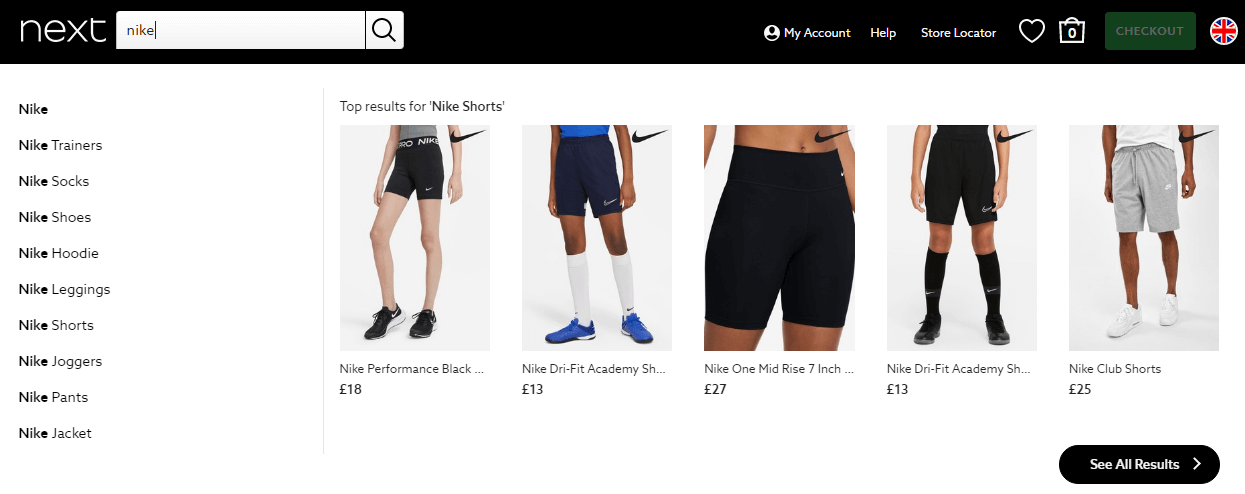
The Next search box functionality provides auto-complete suggestions before the user hits enter/taps to search – potentially reducing the user journey by one click or more. See the screenshot below for an example of this.
Next.co.uk auto-complete example. At this point the user has entered only ‘Nike’ into the search box, without hitting enter.
Another potentially good strategy is redirecting searches to specific products, ranges or category pages in some situations – which can save a step in the user journey if done effectively and without any frustrating errors.
For example on a grocery ecommerce store a search for [vegan] could redirect users directly to the primary vegan range/category, rather than simply listing all search results that include the word ‘vegan’.
Blocking Search Results from Search Engines
From an SEO perspective it is important to ensure that onsite search results pages are blocked from indexing by offsite search engines, such as Google and Bing.
A robots.txt disallow rule is not strong enough here. A noindex based solution is going to be ideal for most situations – to fully prevent Google from indexing the results.
Why is it important to block Google/search engines from search results pages? Allowing search results pages to get indexed can create an attack vector for hackers/spammers, as well as potentially causing SEO issues.
Here are some UK based ecommerce sites that have not blocked their search pages from indexing:
Clintons Cards
Casio
Mobile menus & navigation
With the majority of visitors to ecommerce sites now being on mobiles for many sites and industries, and Google having moved firmly towards mobile first indexing, getting your mobile menus right is vitally important for both users and SEO.
There is a huge amount to consider when building and optimising a mobile navigation and menu system. It is worth considering that mobile navigation/UI includes more than just a standard mobile menu, especially on ecommerce sites.
For example let’s take a look at the UK fashion etailer Missguided.co.uk. Note before we even look at what most would consider standard mobile menu accessed via the hamburger icon, we can already navigate using swipeable sub-menu of trending/featured categories, breadcrumbs, links to important sub-categories with images, and a product filtering system.
Having the mobile menu in a swipeable format in theory could save potential customers a click when accessing popular resources. It also means the links are in plain sight for both visitors and search engines.
Missguided mobile menuExpanded
Next up is an example from global ecommerce giant Ikea. The first image shows the upper navigation area for mobiles, which includes a prominent search box (including a visual search feature), delivery and store information, breadcrumbs, and a mobile menu with a hamburger icon.
The mobile menu features two very prominent links dividing up the two main ways users can find their way to products – via a product list, or a list of rooms. Clicking either of the two primary links brings users to a list of resources without refreshing the page or leaving the menu system.
HTML Sitemap
Internal linking is important for SEO, and a good HTML sitemap can potentially help with internal linking across an ecommerce site.
Static sitemaps can also be useful for users who by last resort have been forced to use a sitemap to find their way around a large website.
Tip: Neither users nor search engines should NEED to rely on HTML sitemaps to easily navigate a site. There should ideally already be an effective and intuitive to navigate UI, that doesn’t require users to have to find what they need by browsing a large and cumbersome HTML sitemap.
Sitemaps can be designed to cover an entire site, or just specific sections or page types. For example the Asos.com site features HTML sitemaps listing brands (see below).
Multiple users are reporting SEO issues with the latest update of the popular WordPress caching plugin W3 Total Cache (W3TC) released late last week.
We have tested and confirmed both the presence of the code blocking Google (and other search engines), as well as the circumstances in which Google will be blocked.
Impact
Users on SEO and WordPress forums are reporting that the new code is causing issues in Google’s Mobile-Friendly Test Tool, resulting in submitted URLs failing the test.
CSS and JS files are used by Google to render the content found on URLs. Blocking Google from these important site resources could potentially have a negative SEO impact.
We can see here for example that without access to these resources Google are unable to confirm if a page is mobile-friendly or not.
The impact could be more significant than this however, potentially leading to both crawling and indexing issues for sites affected – which could in turn affect rankings.
What is happening?
The latest W3TC update adds a new instruction to a site Robots.txt file blocking all user agents, including Google, from the cache directory – specifically when the CSS/JS minification option is enabled in the plugin settings.
When minification is enabled, site resources are served from the /wp-content/cache/ directory – which has been blocked from crawling by the latest update.
All In One SEO Plugin Conflict
There are also reports that the newly created robots.txt file is conflicting with the virtual robots.txt file created by the All In One SEO (AIOSEO) plugin if users also have that installed on their site.
The physical file created by W3TC is overwriting/taking precedence the virtual file originally put in place by All In One SEO.
Robots.txt
You can see the new instruction set below (enclosed between two comments):
# BEGIN W3TC ROBOTS
User-agent: *
Disallow: /wp-content/cache/
# END W3TC ROBOTS
We confirmed the presence of this code in the latest plugin update via the W3TC GitHub repository and live on a test site.
Although the robots.txt instruction appeared straight away, files were not moved into the /cache/ directory until we turned on the minification option.
Solution
Disabling minification in the plugin options (and flushing all caches) should move the site JS/CSS files back out of the cache directory.
If you don’t want to turn off minification, an alternative temporary fix would be to simply to remove or comment out the lines in your site’s Robot.txt file – though the issue could recur potentially depending on how W3TC handle this.
Hopefully once W3TC realise their error – in response to what I expect will be a lot of negative feedback from the SEO/webmaster community – they will remove this from future versions of the plugin.
For users that are also having a conflict with the All In One SEO plugin, the best fix would probably be to downgrade to the previous version of W3 Total Cache and turn off automatic updates until the issue is resolved.
Update/Patch
W3TC released an updated version of the plugin (2.1.8) to fix the issue.
If you update your plugin (or have automatic plugin updates enabled) the problem should be resolved.
To check simply visit your robots.txt file and confirm the disallow rule is no longer in place.
We take a look at what to do if your development/staging/testing site has been indexed in Google, including expert advice direct from a Google employee.
Oops! Our Dev site has been indexed in Google
First of all, don’t beat yourself up: a development site getting accidentally indexed in Google has happened at least once to every agency, developer, and inhouse team on the planet.
Perhaps you found out about it via an angry email from your client or their SEO consultant, or maybe you discovered it yourself whilst checking for indexed pages.
How did the dev site get indexed?
If Google is able to find its way to your development site unimpeded, and finds there no instruction not to crawl or index the URLs available to it, there is a high chance Google will store the pages in their search engine for users to find.
This can happen reasonably quickly – even if your dev site was only available for a few days or weeks – this could be enough time for Google to index the entire site.
So if your development site does get indexed in Google, what can you do about it, and are there any urgent solutions for situations where for example the client or management is upset?
How to quickly remove a dev site from the Google index
As recommended by Google’s John Mu, if you find your staging site has been indexed and there is an urgent requirement to remove it, the quickest way to remove content from Google is to use the official ‘Removals Tool‘ found in Search Console.
I’d do a site-removal request in search console – if the site is verified, it’ll be hidden in search within less than a day. After that, you have time to figure out what to do for the long run.
Official video: Removals in Search Console – Daniel Waisberg
To use the Removals tool you will first need to verify the specific domain you want to remove in Search Console if it is already verified.
John goes on to offer some footnotes and warnings regarding use of the tool:
If you make a mistake and need to cancel a removal request, this process should be fast.
Remember that removals apply to both www and non-www, and both http/https.
Using the tool properly should clear the URL from Google for around 6 months.
After temporarily removing URLs from Google, it is sensible to then work towards a permanent removal.
How to permanently remove a development or staging site from Google
The most effective way to request Google no longer indexes a page is to either use a noindex command, or ensure the resource responds with a 410/404 HTTP response to indicate it is no longer available.
Google have stated in the past that a noindex tag and 404/410 should work at the same speed.
If Google returns to a resource following a temporary removal request and finds a 404/410 or noindex tag they will cancel the removal request as it is no longer needed.
You could also set up authentication which would result in Google being unable to access a resource (eg with a 401 HTTP response).
Using a robots.txt block is not a good solution if your site has already been indexed. It can take a long time to have any impact and is not a direct instruction to remove content from the index, so Google can ignore it and leave the page indexed if they wish.
If your site is already indexed in Google, using a robots.txt rule to prevent Google crawling the site will also prevent them from seeing a noindex tag/header if you add one to a page.
How to remove a development site from Google’s cache
Using the Removals Tool in Search Console will by default remove the URLs entirely, including the cache.
When using the tool you are given the option to remove the cached URL – which will clear the snippet shown in search results – until the resource is recrawled and a new snippet will be shown.
How to prevent a development site from getting indexed by Google
To prevent your dev site getting indexed in Google there are a variety of methods you can use:
Authentication (password, IP address, CMS/plugin based, etc)
Google’s John Mu recommends the use of server side authentication as the best method:
My recommendation is always to use server-side authentication for staging / dev sites, since it’s obvious when it’s blocked, and obvious when it’s forgotten. Robots.txt and robots meta tags are easy to accidentally deploy to your live site.
Note: Robots.txt is not a good option because it can be ignored by Google and other search engines.
How to stop Google indexing a WordPress development site
You can use any of the standard methods to stop Google indexing a WordPress staging site – eg password protection, noindex or blocking Google from crawling the site with robots.txt.
The easiest method if you have access to the WordPress admin dashboard is to set WordPress to enable the ‘Discourage search engines’ option via Settings > Reading. This method should add a noindex tag to all your pages.
Ecologi is clearly a product that has been built by geeks, for geeks, so naturally built into the service are two APIs that can let you either display your impact on your website, or to add more impact – automatically purchasing additional trees or carbon which will be added to your next bill.
Read on for a guide to using the Ecologi reporting API to display your impact on a WordPress website.
Ecologi Toolkit & Button
First though, it may be useful to know that Ecologi also have a ‘toolkit’ page – where they host a selection of media and assets users can add to their site or marketing materials.
If you are not technical at all, or don’t have the time to set up the API on your site, one of the features of the toolkit is a set of static and dynamic buttons. Using the dynamic buttons will show your live impact.
You can choose between black text (for light backgrounds) or white text creating a button.
When linking to Ecologi don’t forget to use your ‘Invite friends‘ referral link that you can find on your profile page.
Each person that signs up using your link will get you both 30 trees each.
Ecologi API
Once logged into your account, go to the ‘API’ tab in Ecologi via account settings area.
Reporting API
We are going to use Ecologi’s Reporting API.
The reporting API is completely safe to use so doesn’t require authentication, access keys, or anything fancy like that, because all you are doing essentially is asking Ecologi to confirm the total tree/carbon numbers that they are already on your profile page.
Endpoints
There are 3 available API feed endpoints, depending on what you want to display:
🌲 Trees only: https://public.ecologi.com/users/your-username/trees
We are going to take the JSON feed, pull in the data, and display it on our site for visitors to see.
At this point you may want to have a think about what you want to display and where you want to display it.
If you are working on a project that is totally focused around for example trees, then the carbon numbers may not be useful for you – so you only need to use the trees JSON feed, or vice versa.
We decided to show both trees and carbon offset in different columns, and we wanted to add them to a single page where we talk about our climate work. Alternatively you might want to add them to your about page, footer, or even your homepage.
If you have access to a WordPress web developer there are a few ways in WordPress that you could choose to work with the JSON feed, but we are going to keep this guide simple and use a plugin to handle the heavy lifting for us.
JSON Content Importer WordPress Plugin
Using the JSON Content Importer plugin it is possible to easily import and parse the JSON feed, then display the results right on your website, via a Gutenberg block, or a short-code.
Step 2: Load up the page where you want to display the information and add the JSON block in Gutenburg which should now be available. If you search ‘json’ it should find the ‘JSON Content Importer FREE’ block which you can add to the page. See below:
Adding the JSON Content Importer block in Gutenburg
Step 3: On the right hand side you should see the block settings. Paste the URL of the appropriate API endpoint (eg ‘trees only’) into the ‘API-URL’ box. You can see a screenshot of this, and the next step – under Step 4.
Step 4: In the template box, you will need to use a template that matches up to and extracts the ‘total’ value. I use something along the lines of:
<p>{total}</p>
Your settings should look something like this:
Step 5: If you want to add another metric, repeat steps 2-4 with a new block.
I found setting up a two column layout in Gutenburg worked well, so you can have one column for trees and one for carbon.
Once you are done, save/publish the page and you are good to go!
Shortcode / Working with other page-builders
If you are not using Gutenburg the JSON Content Importer plugin has a shortcode functionality that you should be able to use with any page builder or even just direct in a post/page.
Here is an example short-code I have tested and can confirm works correctly on my site:
It is been a busy week for those with an interest in recruitment SEO – Google have announced two significant new updates to their AI powered job service Google Jobs.
On Tuesday in a Search Central blogpost Google released details on a new technical feature allowing recruitment sites to indicate if they allow direct applications, and also provided information on additional new editorial guidelines for job sites.
Editorial Content Policy
Google are launching a new editorial content policy for Google Jobs, scheduled to be implemented in October this year.
The upcoming policy will include requirements such as:
Obstructive text and images
Excessive and distractive ads
Content that doesn’t add any value to the job listing
Follow basic grammar rules
Avoid unnecessary capitalisation
Direct Apply – New ‘directApply’ property for job listings
The new directApply property is an optional feature allowing recruitment sites to specify to Google that users can apply directly on the applicable page.
The aim is to make it clearer to users whether they can actually apply directly on a site or not, avoiding the dreaded double application process that many sites currently use – whereby a user would fill in their details once whilst applying – only to be asked to be forwarded to another location and asked to fill in the very same details again on the next site.
What is a direct apply experience?
A direct apply application process should be ‘short and simple‘ without any ‘unnecessary intermediate steps‘.
This includes any repeated action such as having to sign or log in more than once which would indicate that a website does not offer a direct apply experience.
Google have created an illustration that attempts to illustrate this process and show the shorter, faster, and ultimately more preferable route for job applicants.
Above – a short direct apply experience, vs an extended non-direct apply application process.
If the user has to click apply, complete an application form, sign in or log in more than once in the application journey, it means that you aren’t offering a direct apply experience.
Google Developer docs
How to improve trust
Google also listed some issues based on research they have conducted that job sites should attempt to avoid in order to improve candidate trust. The expanded list is in the blog post but I have summarised it below:
Verify that there are no scammy or spammy job posts on your site
Ensure a good user experience
Remove expired job posts
Make sure that the job’s posting date is genuine
Don’t include wrong or misleading information in the job post or the markup
Traditionally when Google (or other search engines) look for text-based content to index – they expect to find this content directly in the HTML of the webpage that is served to them.
This changed somewhat with the rise of sites using JavaScript to serve anywhere from small pieces of content to entire websites.
Google was forced then to invest resources attempting to render and index JavaScript based content as effectively as possible.
CSS Pseudo Elements
But what about text content that is sourced purely from CSS? It is possible to add content to a page using CSS pseudo elements such as ::before and ::after combined with the CSS content property.
See a simple example below:
<p>99 bottles of beer on the wall, 99 bottles of beer.</p>
p::after {content:' Take one down and pass it around,
98 bottles of beer on the wall.'}
Will display as:
99 bottles of beer on the wall, 99 bottles of beer. Take one down and pass it around, 98 bottles of beer on the wall.
Year after year as CSS gets more advanced and other features are introduced, such as the ability to do mathematical calculations or count elements using only CSS, the likelihood of devs and designers adopting these features becomes higher.
But will Google be able to render and index this content? Will the text found in the CSS appear and be searchable in Google?
Is using CSS for text best practice?
Before we start it is important to note that in the large majority of situations using CSS pseudo elements and the ‘content’ property (instead of HTML) to display any significant amount of text based content on a website is absolutely not best practice for various reasons, including:
The text is not selectable by users, meaning it can’t be highlighted or copied/pasted
The text will be ignored by screen readers – making the content inaccessible and against accessibility guidelines.
F87: Failure of Success Criterion 1.3.1 due to inserting non-decorative content by using :before and :after pseudo-elements and the ‘content’ property in CSS
CSS pseudo elements should generally speaking only be used for decorative elements that are non-essential to the consumption of the content on the page.
SEO Poll
Until the production of this article – I was not able to find any other SEO-focused articles on this topic, so I thought it could be interesting to dig in and so some research.
I asked the SEO community what they thought in a Twitter poll, with the following results:
Can Google index text content from CSS displayed on a web page in a pseudo element, eg :before, :after?
Taking out users that just wanted to see the results, there is a fairly even split between the three choices with ‘No’ and ‘I don’t know’ getting an equal number of votes (12), and ‘Yes’ trailing behind by just a few votes (9).
Test
To test I created a page that contained zero standard HTML based content and added text content using CSS pseudo elements attached to heading, paragraph, div and link tags – sourced from an external file CSS file.
You can also view the code and resulting page on CodePen here.
To give the URL a little boost to help it get indexed more quickly (or indeed at all) I linked to it temporarily from the footer of the site.
Rendering
To test I also ran the page through the Fetch tool in Search Console and the Mobile Friendly testing tool.
Both showed that Google were able to fully render the CSS content as it appeared to normal users on the page.
Results
Eventually (slightly to my surprise) the page did get indexed in Google despite the complete lack of content.
However checking the resulting listing in Google, and after searching for strings of text from the page – it became clear that no actual content had been indexed.
So we can confirm from this test that: NO – although Google can render it, CSS based content will not currently be indexed in Google.
If you include text content on your site using CSS pseudo elements and the CSS ‘content’ property it is currently not possible for Google to index the text content.
Update (14/7/2021)
The fantastic Jess Peck alerted me to a previous test she conducted on the same subject you can view here, and another post/experiment from Mathias Bynens that doesn’t use any HTML at all.
Check out our review based on our direct experience testing out the new service on the Search Candy website.
CloudFlare APO Review
TL:DR: I would say the APO service should still be in beta.
First, what is the CloudFlare WordPress APO?
With Automatic Platform Optimization (APO) Cloudflare will serve your entire site from our edge network, ensuring that customers see improved performance when visiting your site. Typically Cloudflare only caches static content, but with APO we can also cache dynamic content like HTML so the entire site is served from cache. This removes round trips from the origin drastically improving TTFB and other site performance metrics.
I am a big CloudFlare fan – I think the service has a huge amount of potential – but its important to understand what CF is actually capable of and ignore any of the “black magic” vibes that people assign to it.
CloudFlare and their products either work – and ideally speed up/secure your site – or they don’t, and they are a waste of money.
Supported Plugins
Here is the official list of WordPress plugins that are confirmed by CF to work with the new WordPress APO (source) – updated September 2021.
WP Rocket
BigCommerce
Easy Digital Downloads
WooCommerce
YITH WooCommerce Wishlist
WP EasyCart
Ecwid Ecommerce Shopping Cart
WP ECommerce
Bookly
WPTouch
Mobile Detect
WordPress Mobile Pack
WP-Mobilizer
WP Mobile Edition
Any Mobile Theme Switcher
Easy Social Share Buttons
Jetpack (Mobile Theme)
wiziApp
WPML
Quite a small list. If your site uses any WordPress plugin that is not on that list, then its compatibility with the APO is not supported by CloudFlare or guaranteed to work.
Specifically you may note that there are no caching/site optimisation plugins on the list. Update: CloudFlare have now added WP Rocket to the list of compatible plugins.
The lack of support for optimisation plugins is at the root of all the issues I had with the service.
It is simply not designed for users who have independently made any web perf optimisations to their site, such as installing a caching plugin, removing resources via AutoOptimize, or similar.
On installing the CloudFlare plugin (required to use the service), my site’s footprint increased in size from a manageable number of well optimised resources, to over 70+ unoptimised files.
The CloudFlare plugin essentially de-optimises your sites resources, then tries to cache them at the edge.
Interactions with support etc have not been great so far.
Use a plugin not on CloudFlare’s list of ~20 compatible plugins? That’s a ‘user misconfiguration error’
Which Caching & Performance Optimisation Plugins work with the CloudFlare APO?
So far we have tested the following plugins with the CloudFlare APO:
LiteSpeed Cache for WordPress
Compatibility with CloudFlare APO: 0/10.
Instantly breaks the site. We were not able to find a combination of plugin settings or a setup that did not result in a broken site.
Has a direct integration via API allowing you to clear the CF cache directly.
FlyingPress
Compatibility with CloudFlare APO: 5/10.
Doesn’t result in a broken site, but does not have any integration with CloudFlare. Recommended setting (as per FlyingPress docs) is to turn off page caching in FlyingPress whilst using the CF APO.
HummingBird
Compatibility with CloudFlare APO: 8/10.
Works well with the CloudFlare APO and has an API integration allowing you to clear the CF cache directly.
Conclusion
My recommendation to anyone who was interested in testing it out would be: by all means test it out, but don’t expect it to improve your site speed if you have already made a reasonable attempt at this already.
Perhaps in 6-12 months CF will have improved the service to the point where it works with other optimisation plugins.
Your mileage may vary. Perhaps there is a caching plugin or server/site settings combo that DOES play friendly. But I haven’t found it.
There may be people reading this who have no interest in web perf but who do like the sound of a paid service aimed at WordPress that tries to do some of the work for you.
With the added pressure of Google adding Core Web Vitals performance in search rankings – due to hit in May 2021, potentially millions of businesses will be looking to solutions like this.
Personally for me the test is over for now, I have moved back to using our original CDN in the meantime, and site speed is back to normal.
March 2022 Update
Another test of CloudFlare’s APO, and results have not improved. We attempted to use the APO again – and tested the results. Every aspect of the site performance worsened: speed, total resource size, request numbers, and in the lab Core Web Vitals scores dropped.
If you have Google Search Console set up for your recruitment website (or indeed any website that hosts job listings) then you may well have received an email titled as per the below at some point – if not dozens of times:
New Job Postings issues detected for site https://www.example.com/
So what does this email mean, and is it a problem you need to take care of? We will explain everything in this blog post.
First things first, let’s make sure we understand the basics.
Why am I getting this ‘New Job Postings issues detected’ email?
If you have received one of these emails – whether you are the main contact in Search Console, or it has been forwarded to you to deal with – we can state with certainty that the following is likely true:
These jobs listed on your site are at least partially using the Job Posting structured data format
Google have detected some kind of error or issue with the Job Posting structured data as it is used on your website
Initial Steps
The first step with anything like this is simply to make sure you have access to Google Search Console.
If it has been set up by someone else who may have left the company or at a previous marketing agency, you may have to either ask them to add you as a user, for the account details (if a generic/shared account is being used for access), or if all else fails you may have to go about getting yourself set up/verified in Search Console.
Once you are logged into Search Console, be aware that you may have more than one website, or ‘Property’ as they are known, inside your Search Console account, so make sure you have the correct one selected.
To do this you can navigate to the property for the domain you received the email for using the ‘Select property’ dropdown list in the top left of the screen.
Enhancements > Job Postings
Once logged into Search Console and you have the correct domain property you will need to navigate to the Job Postings section under ‘Enhancements’ in the sidebar. See the image below:
Screen-capture of the ‘Enhancements’ section in Search Console
From here you should be able to see three tabs: Error, Valid with warning, and Valid.
Using the two tabs that highlight errors and warnings, you can work through and diagnose which parts of your code/data are causing issues.
Errors vs Warnings – What is the difference?
Errors show when a required piece of information has not been provided. These need to be corrected or the job listing will be unlikely to show.
Warnings on the other hand occur when an optional piece of information is missing. These are more optional, but for the sake of a quality listing you should still consider fixing them.
If necessary you will may need to work with your developers to repair, or add in, extra bits of structured data.
Different issues you can face include missing or incorrectly formatted data.
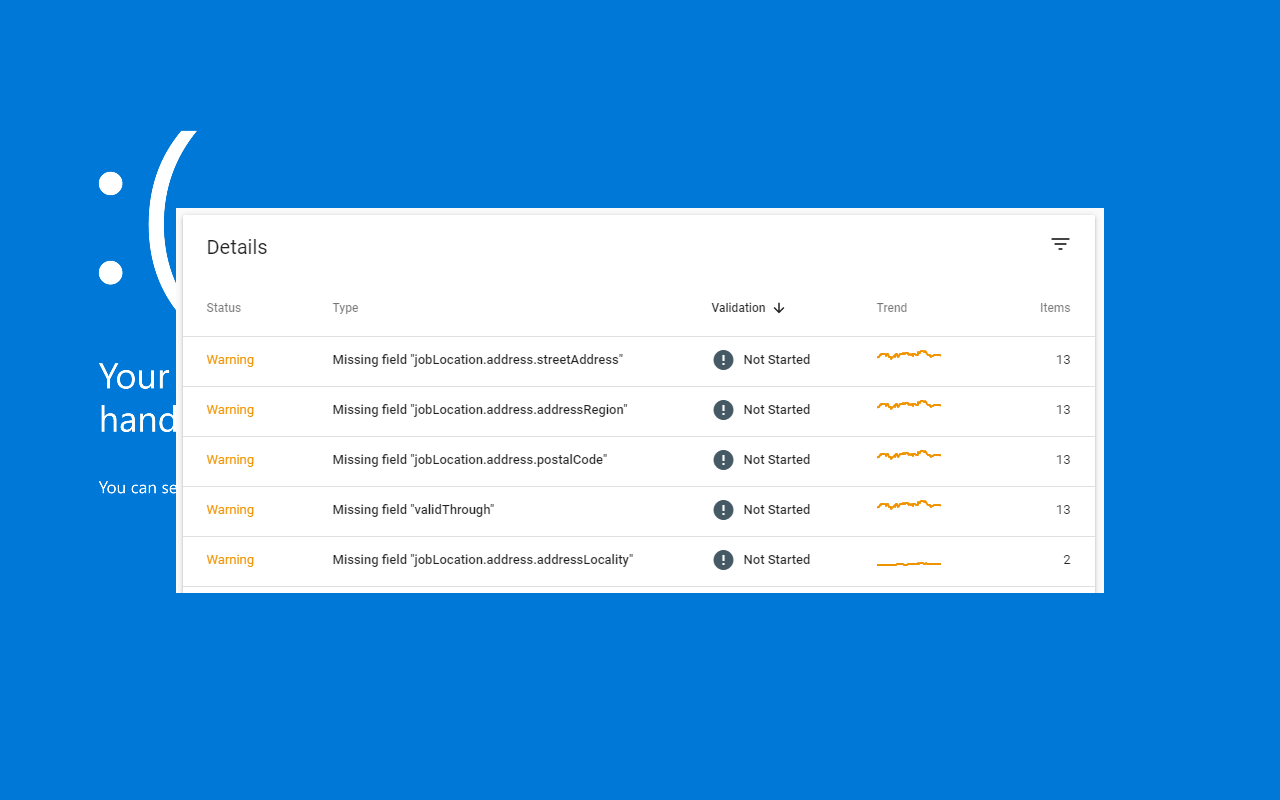
Examples of Job Posting warnings in Search Console
Job Postings – Quick Guide
Currently there are 6 required properties and 5 additional recommended properties to include in your Job Postings structured data.
Required properties
There are 6 required properties for job postings:
datePosted
description
hiringOrganization
jobLocation
title
validThrough
Recommended properties
In addition to this there are also 5 recommended properties to think about including:
In December 2019 Google made an update to how they reported errors, aiming to be as specific as possible with regards to the issues affecting job listings.
This means that users looking at historical errors around this time may see fluctuations in the number of reported errors.
Search Console now reports more specific error types of Job Posting errors. Therefore you might see a reduction in certain generic error types, with a corresponding increase in new, more specific error types (if you have not already fixed those issues). The total number of errors should not change as a result of this update.
As reported in SERoundTable early on the 28th of December, and TechCrunch on the 29th, Google have this week introduced a new integration for TikTok and Instagram content via the Short Videos Carousel.
Users of mobile search via the browser or mobile app may encounter short-form videos from either of the two platforms.
Short Videos Carousel
The Short Videos Carousel was first spotted in April and thought to be one of the many new features Google introduces and tests for success every year.
Previously the Short Videos Carousel only featured content from YouTube. Now Google also appear to be surfacing short video content from both TikTok and Instagram.
The TechCrunch article incorrectly stated that the feature would only be available via the Google app. In testing we were able to confirm that the feature is available via Google web mobile search – and the original tweet from Brian Freiesleben (@type_SEO) first spotting the new feature indeed shows a screen of Google mobile search in a browser, not the app.
Noticed Google pulling in Instagram and TikTok videos into this “short videos” carousel this morning. pic.twitter.com/iDr3C8OEAE
No it does not – both at the time of writing, and likely for a reasonably long period going forward into the future.
Short video platforms and features such as TikTok, Instagram, Facebook Stories and Twitter Fleets – are all primarily mobile focused.
Although they are are also usually available on desktop in one form or another – these videos tend to be vertical – making them ideal for viewing on mobile devices – and generally speaking are designed to be quickly consumed short-form videos.
TechCrunch reached out to Google and a spokesperson confirmed that this test would only currently be available on mobile, and appear only with a limited amount of web searches.
A company spokesperson confirmed to TechCrunch the feature was currently being piloted on mobile devices. They clarified that means it’s a limited, early-stage feature.
Google almost certainly will have come to behind the scenes arrangements with TikTok and Instagram to make this happen.
Although the feature is experimental, it represents the direction Google are moving in: working with the mass public shift from desktop to mobile search creating features designed to keep users coming back for more.